
This only applies to documents in Organization files, and requires organization-level access.
Want a document to automatically be available at every one of your locations — including ones you open in the future? Share it as a Master with the default location setting.
Open the document in Organization files, click Share, and choose the Master tab.
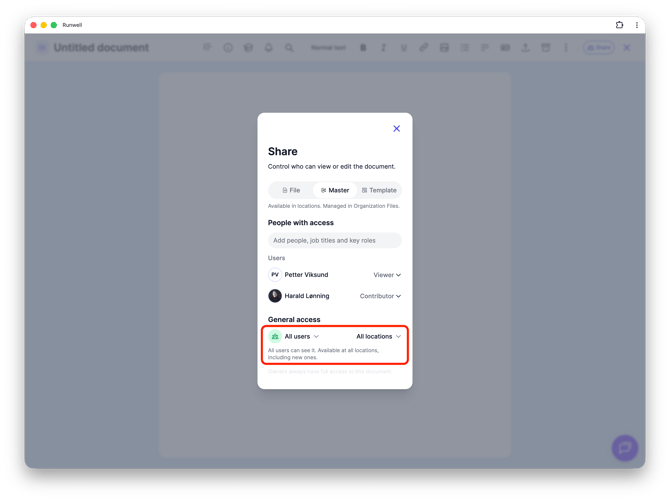
Make sure the locations setting is set to All locations. You'll then see the text "Available at all locations, including new ones" under the setting — meaning any location you add later automatically gets access to the document, with nothing more for you to do.
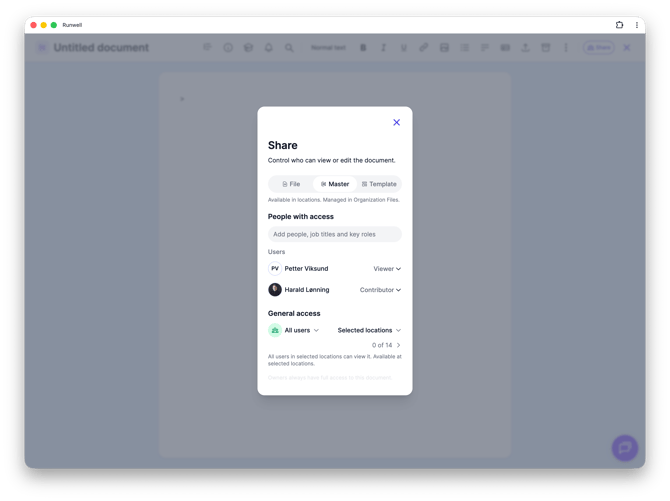
Want to limit the document to specific locations instead? Choose Selected locations instead — see the article on sharing with selected people for the details.
Don't hesitate to reach out to our customer service if you have any questions 🤩