
This only applies to documents in Organization files.
A template is a document that locations choose to copy from the Template Center themselves. Unlike a Master, future changes to the original don't carry over to the copy — the location gets its own, independent version from the moment it's copied.
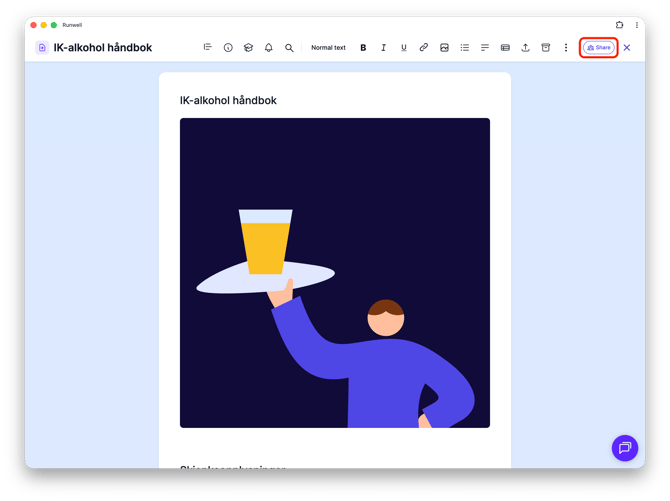
Open the document in Organization files you want to turn into a template, and click Share.
Choose the Template tab. Under General access, choose whether the template should be available to All users or Restricted to selected people, and whether it should appear in the Template Center for All locations or only Selected locations.
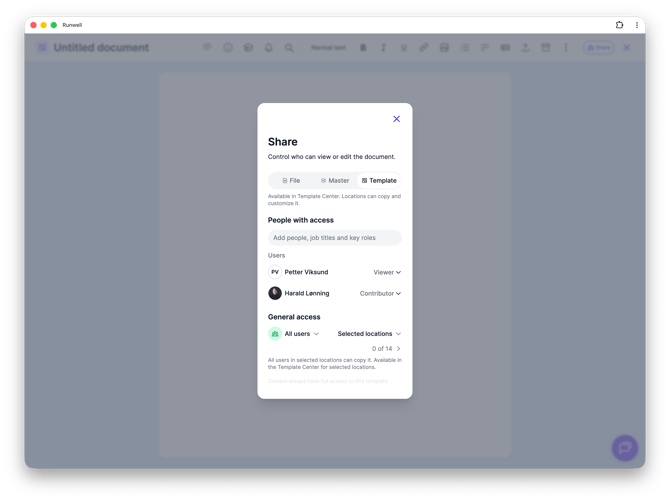
From now on, the document shows up in the Template Center for the locations you chose. From there, they can open it, grab a copy, and make it their own — fully independent of your original.
Don't hesitate to reach out to our customer service if you have any questions 🤩