
Runwell looks slightly different on a computer and on mobile, but the menus contain the same things. Here you see where to find the main menu, the location menu, settings, the plus button, display mode and the help center.
What you see in the menus depends on your access level. An employee sees fewer options than an administrator or super administrator.
The main menu
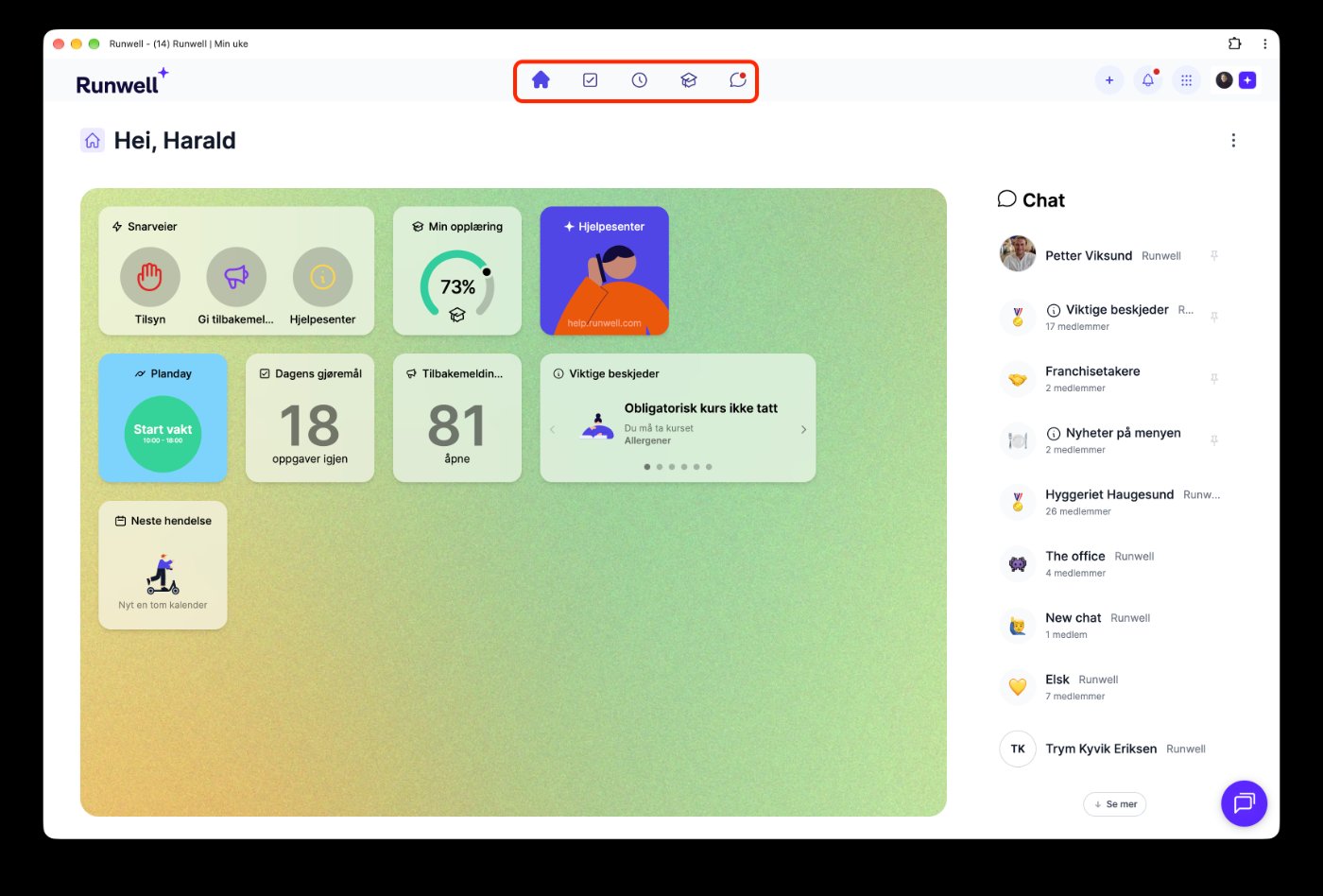
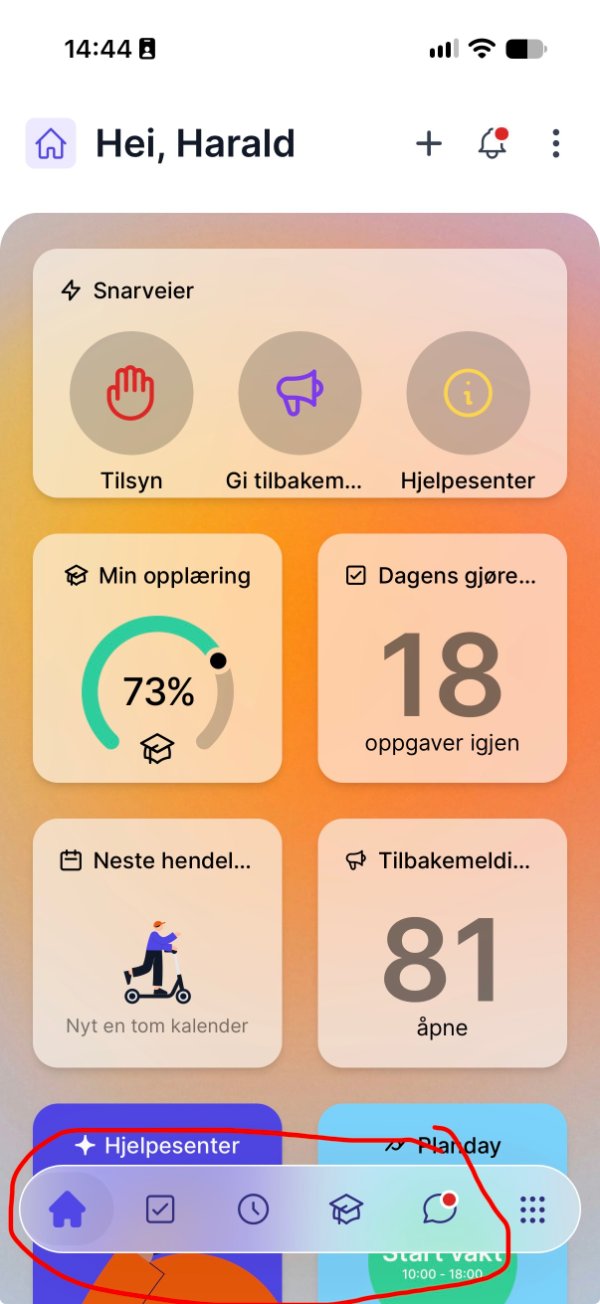
The main menu holds the five things you use the most: My week (home), My tasks, My shifts, My training and Chat.
Computer: The main menu is in the middle at the top of the screen.
Mobile: The main menu is at the bottom of the screen.
The location menu (the nine dots)
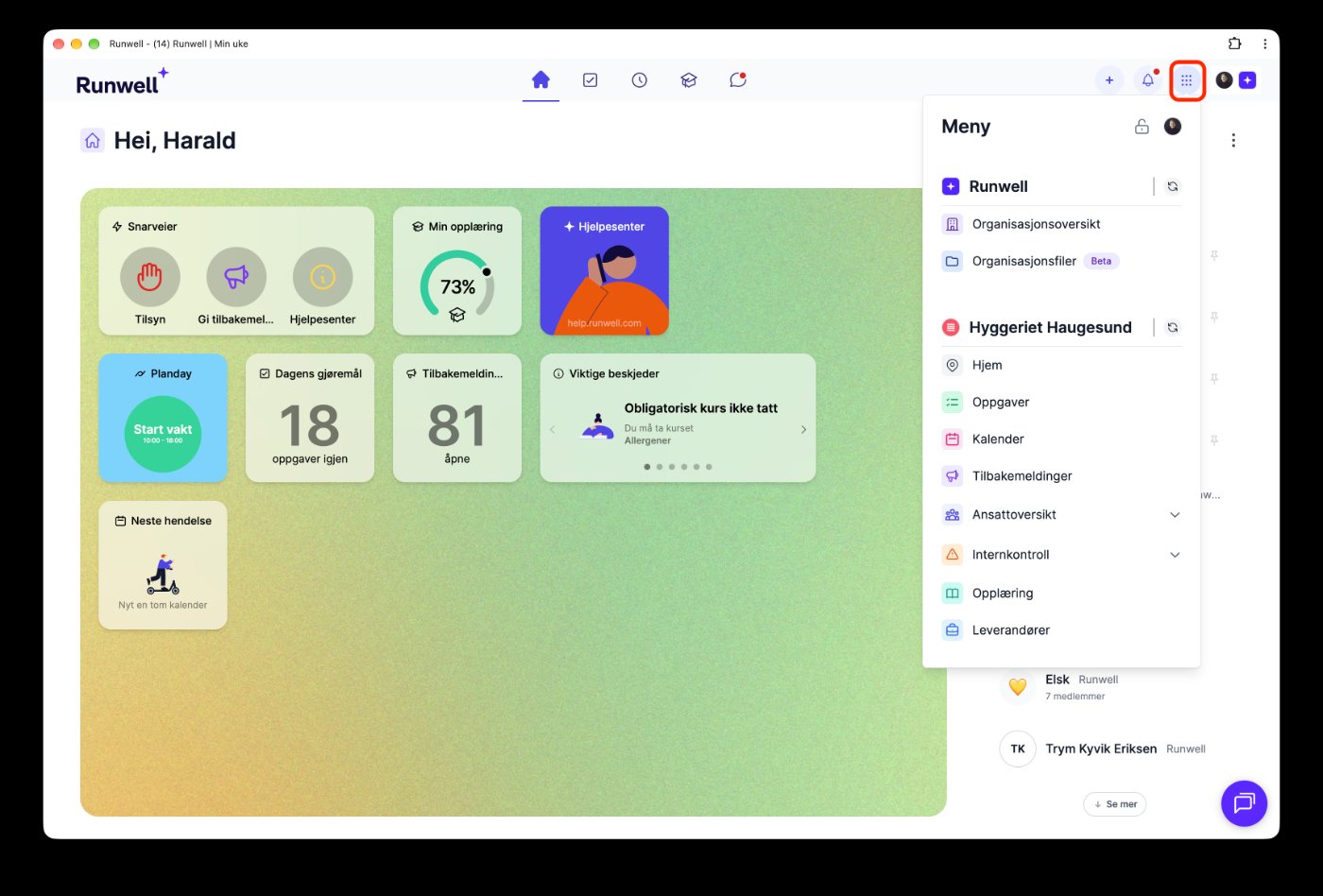
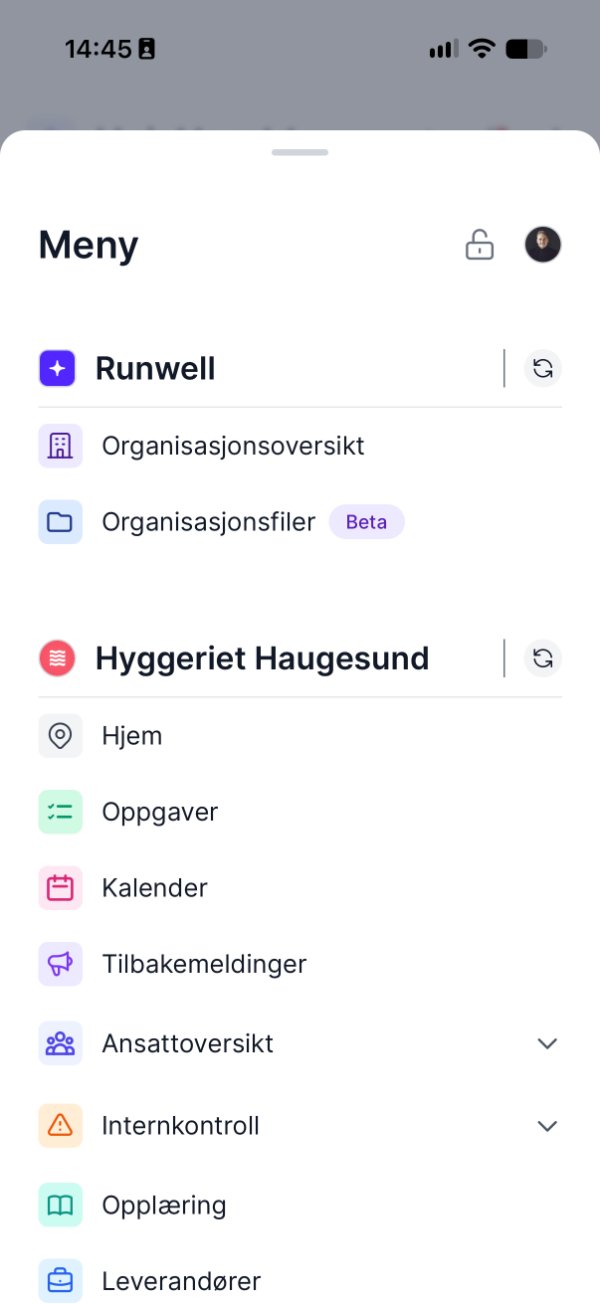
Open the location menu with the nine dots icon. At the top you see your organization with Organization overview and Organization files. Below that you see the location you are in, with Home, Tasks, Calendar, Feedback, Team (employee overview), Compliance (internal control), Training and Suppliers.
If you have several locations, switch location with the circular arrows to the right of the location name.
Computer: The nine dots are in the top right corner, next to your profile picture.
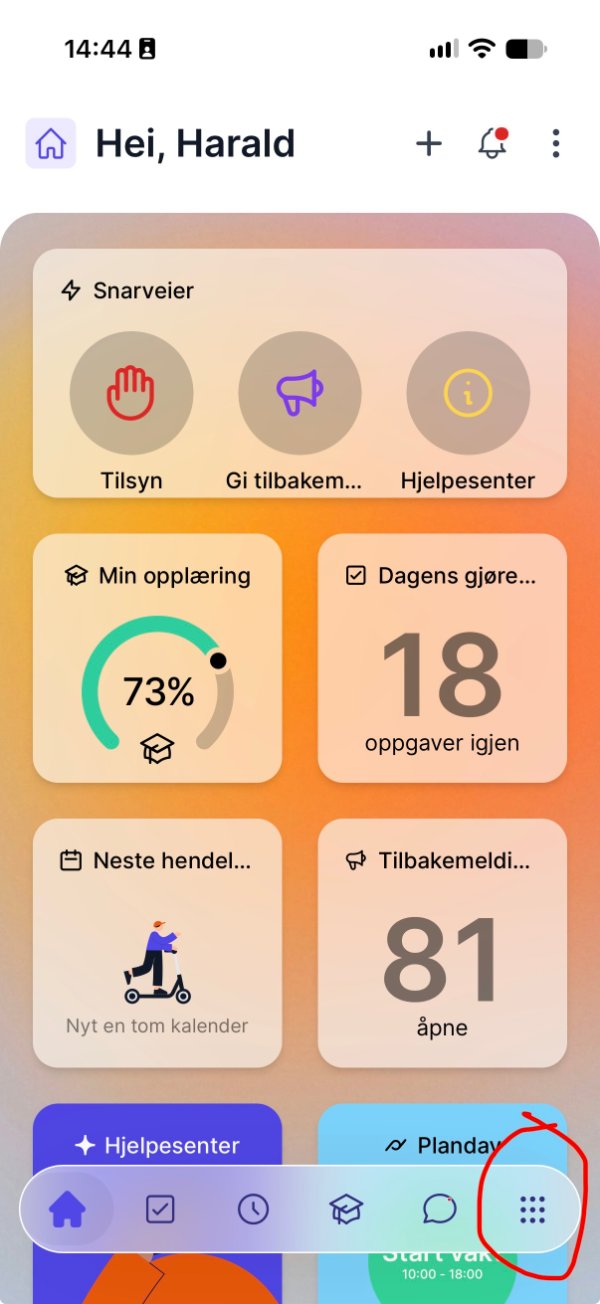
Mobile: The nine dots are on the far right of the main menu at the bottom.
Settings
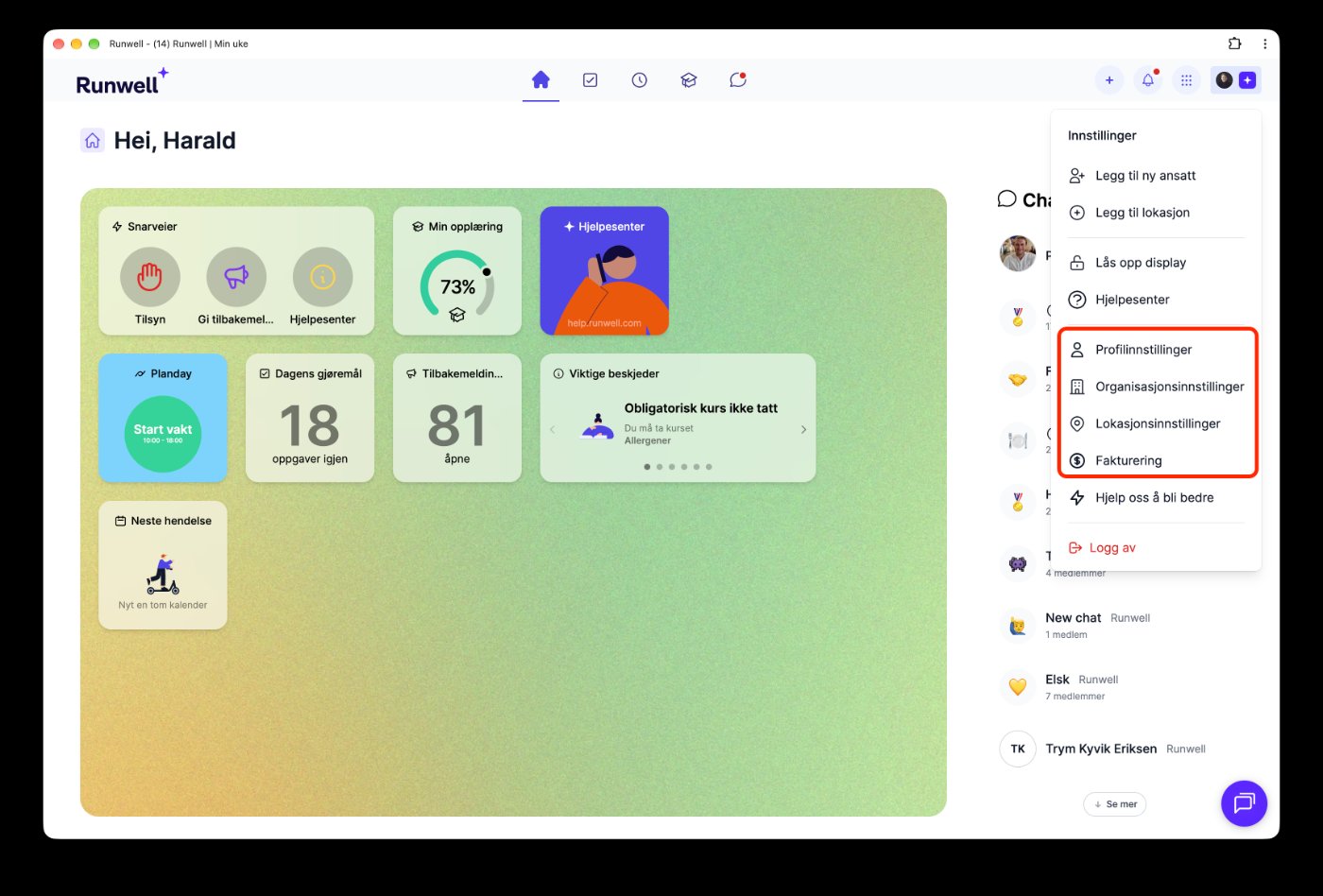
Computer: Click your initials or profile picture in the top right corner. The menu that opens has Personal settings, Organization settings, Location settings and Billing. Log out is here too.
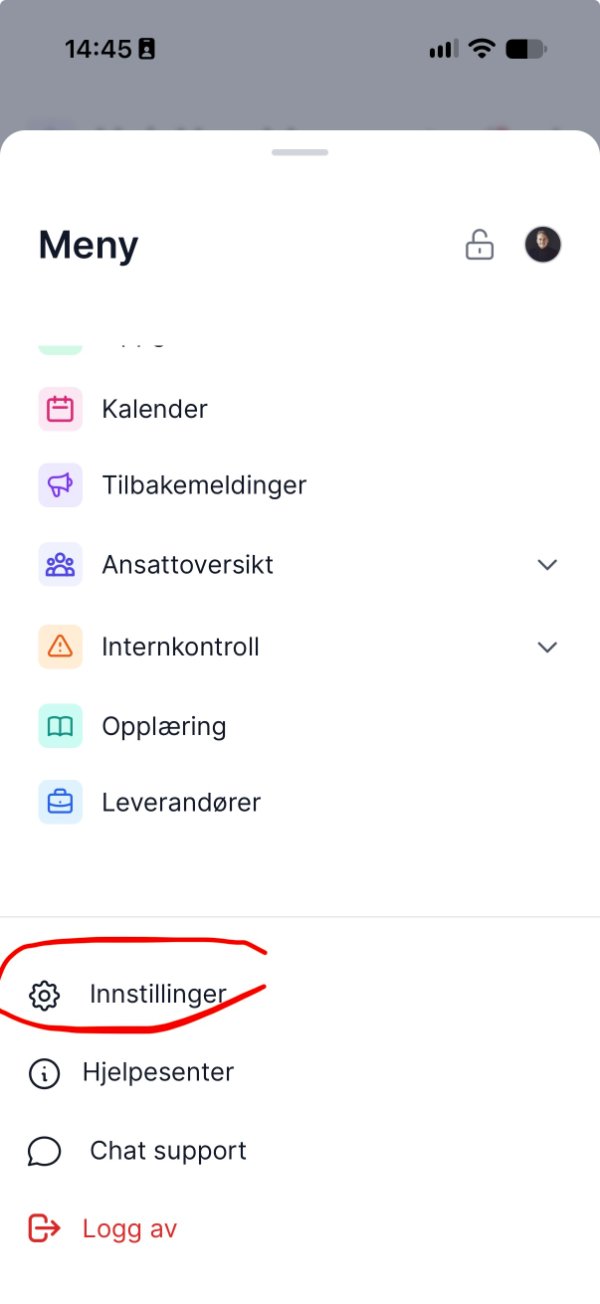
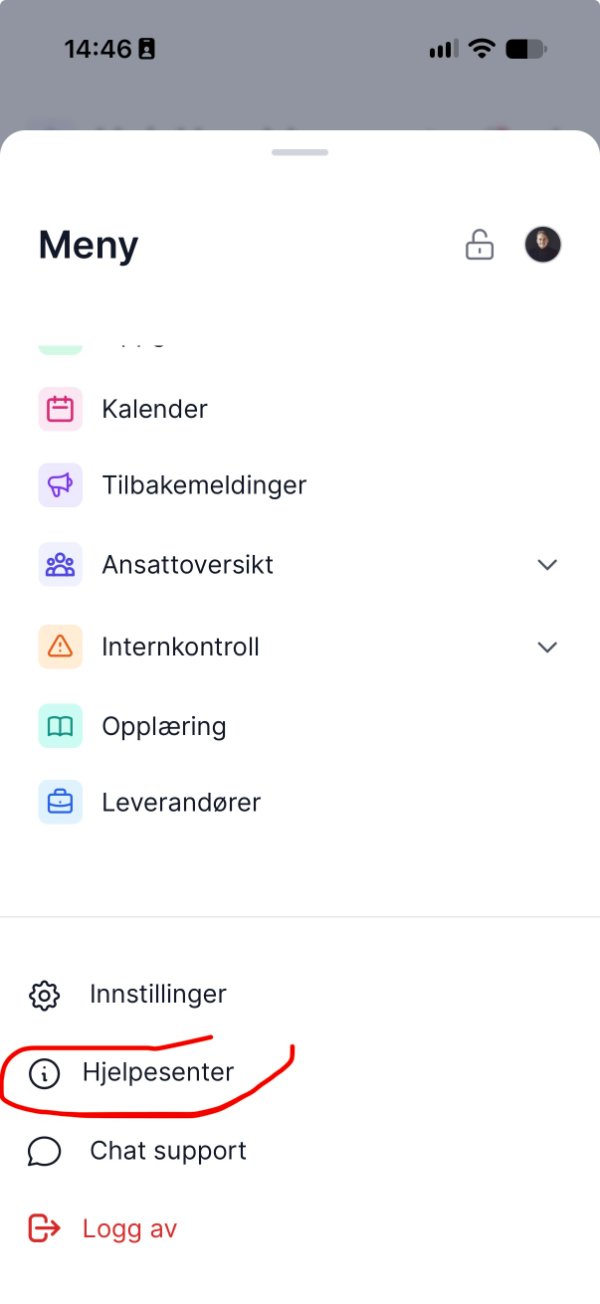
Mobile: Open the location menu (the nine dots) and scroll all the way down. There you find Settings, Help center, Chat support and Log out.
Everyone can use Personal settings, for example to change language or edit personal information. Organization settings and Billing require super administrator access.
The plus button
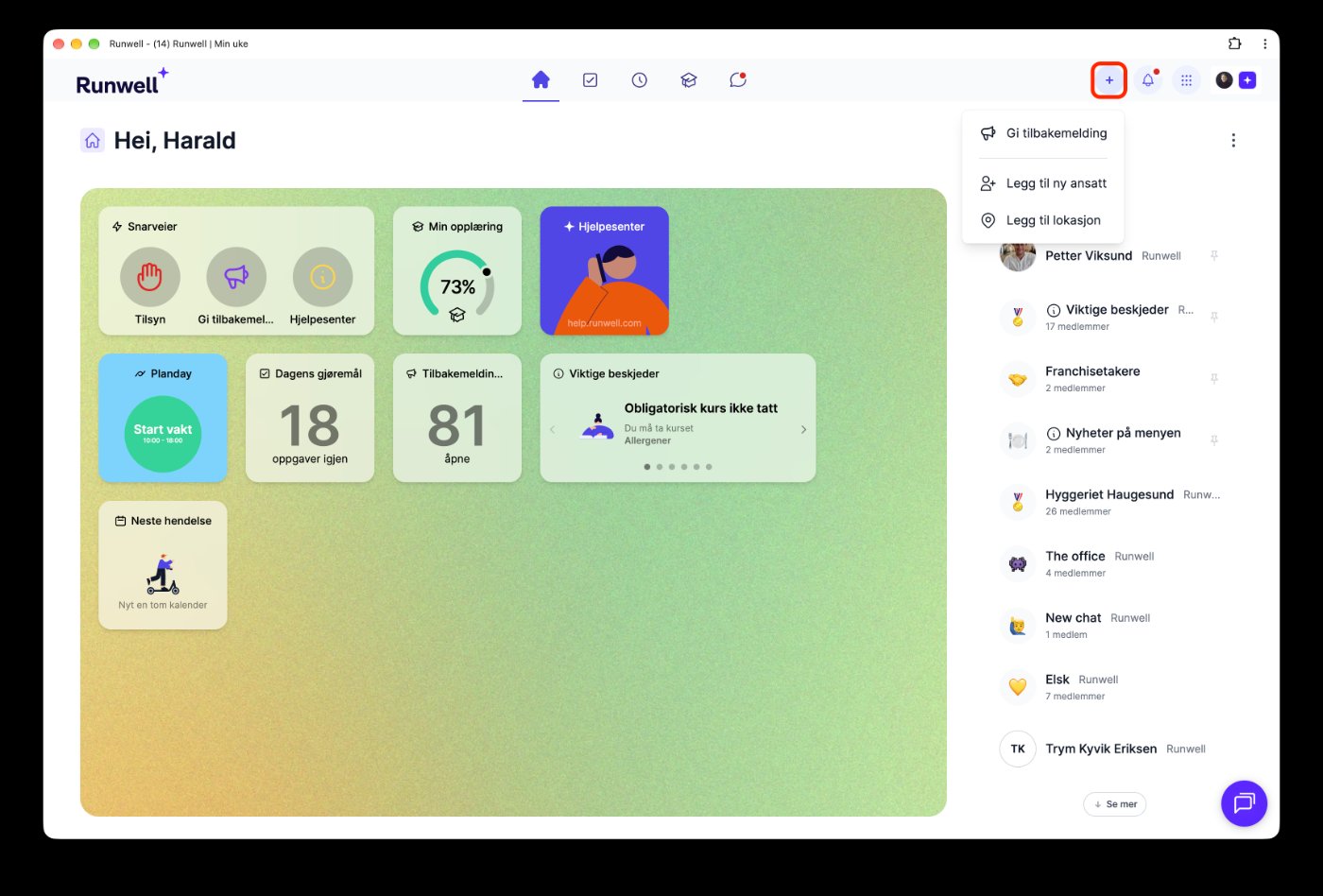
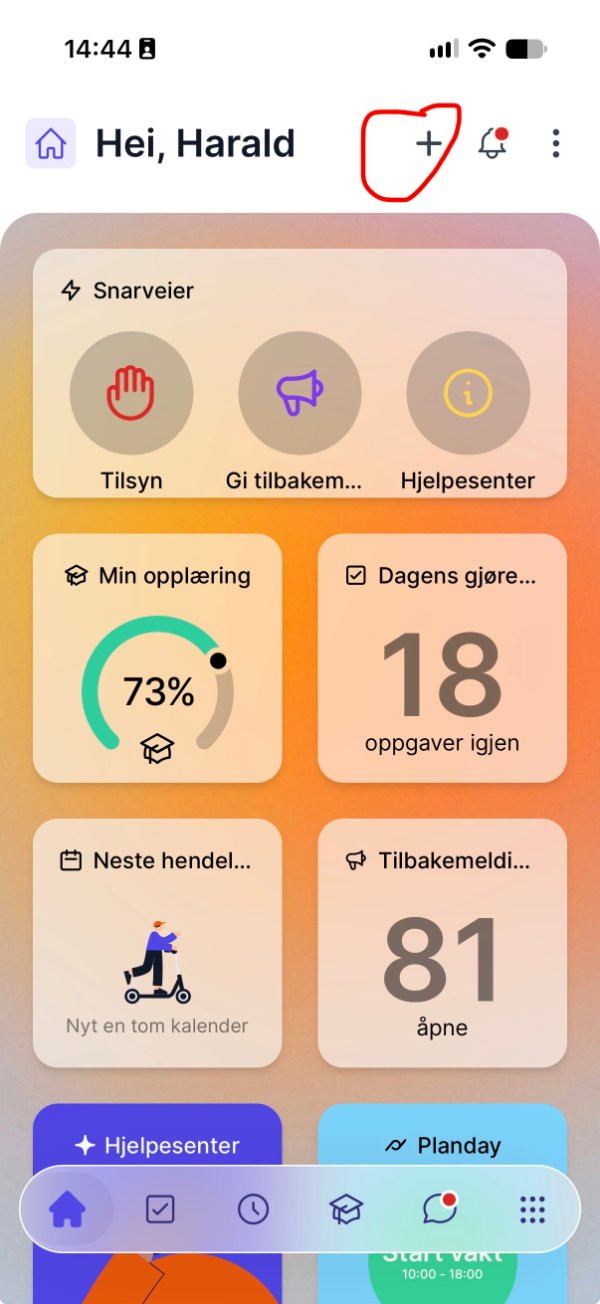
The plus button gives you quick access to the most common actions. What you see depends on your access level:
- Employee: Give feedback (for example a deviation).
- Administrator: Give feedback and Add new employee.
- Super administrator: Give feedback, Add new employee and Add location.
Computer: The plus button is in the top right corner.
Mobile: The plus button is in the top right corner of My week.
Unlock display mode
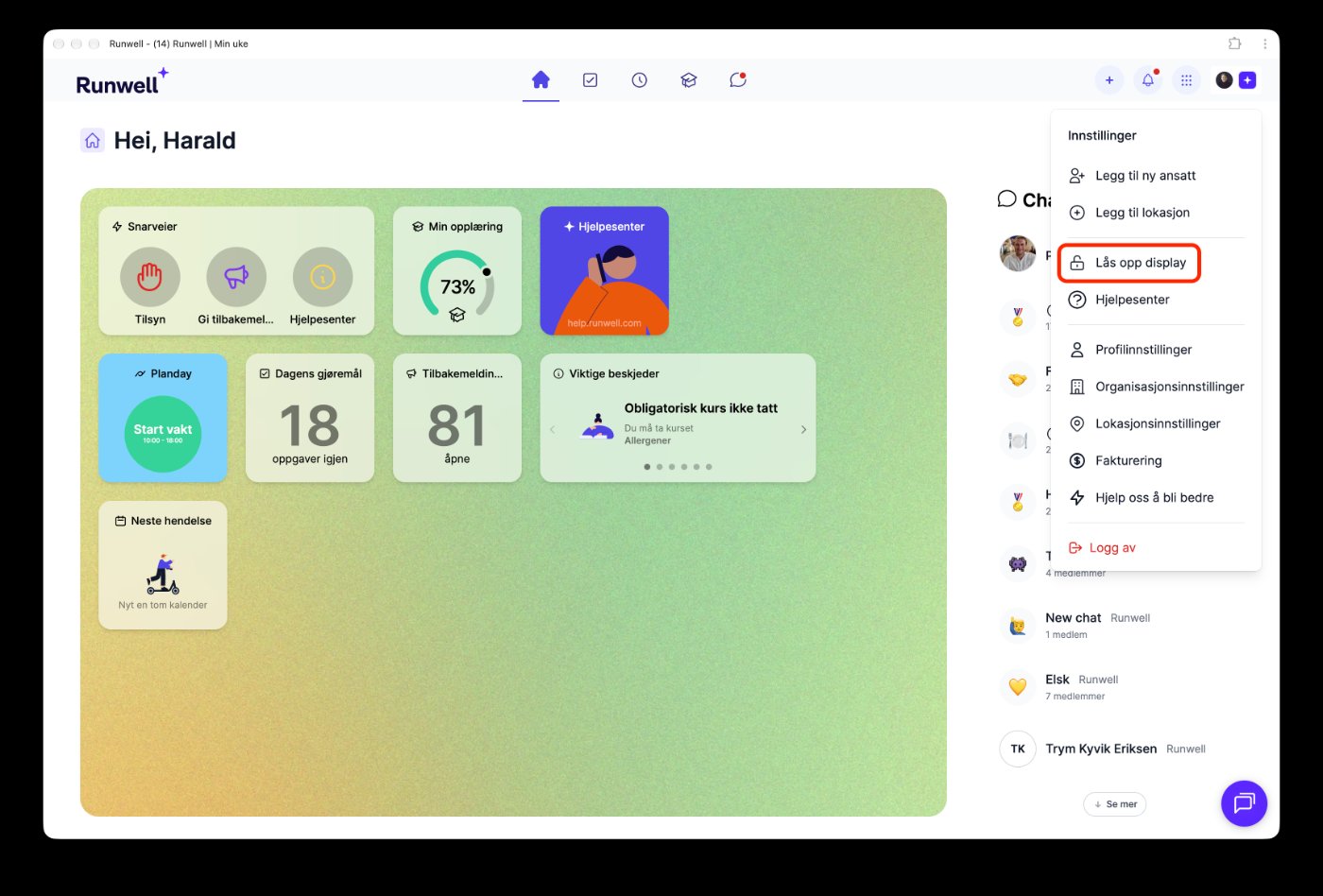
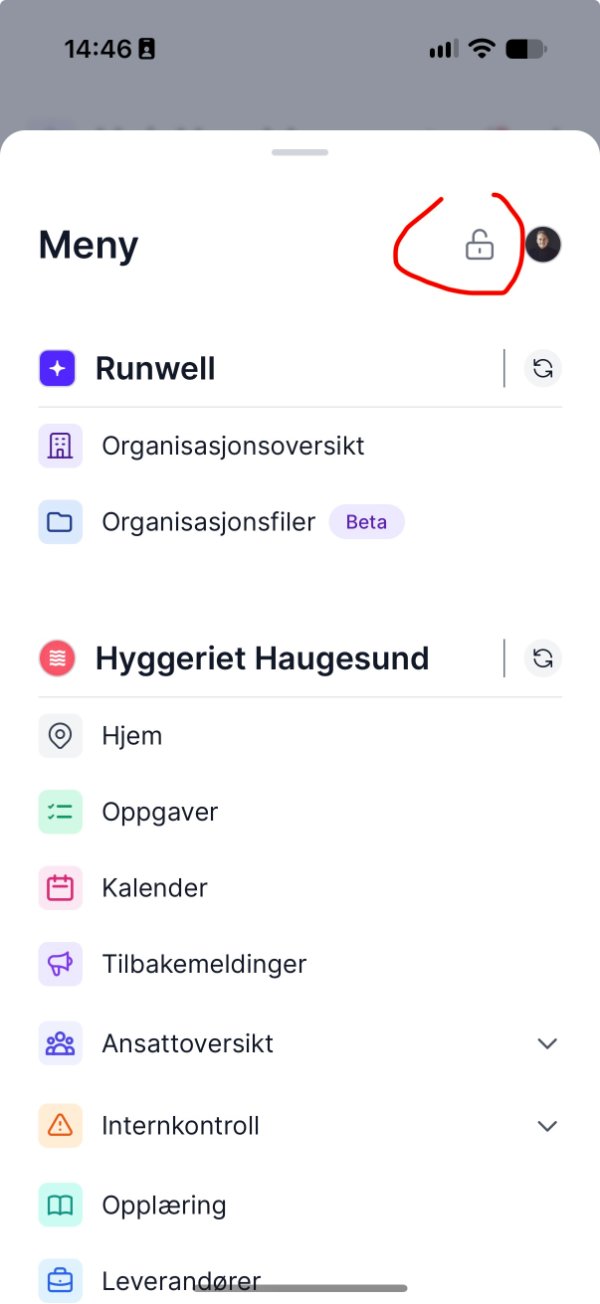
Display mode is used on a shared tablet or computer. This is how you unlock display mode and log in as yourself:
Computer: Click your initials or profile picture in the top right corner and choose Unlock display.
Mobile: Open the location menu and tap the padlock at the top.
The help center
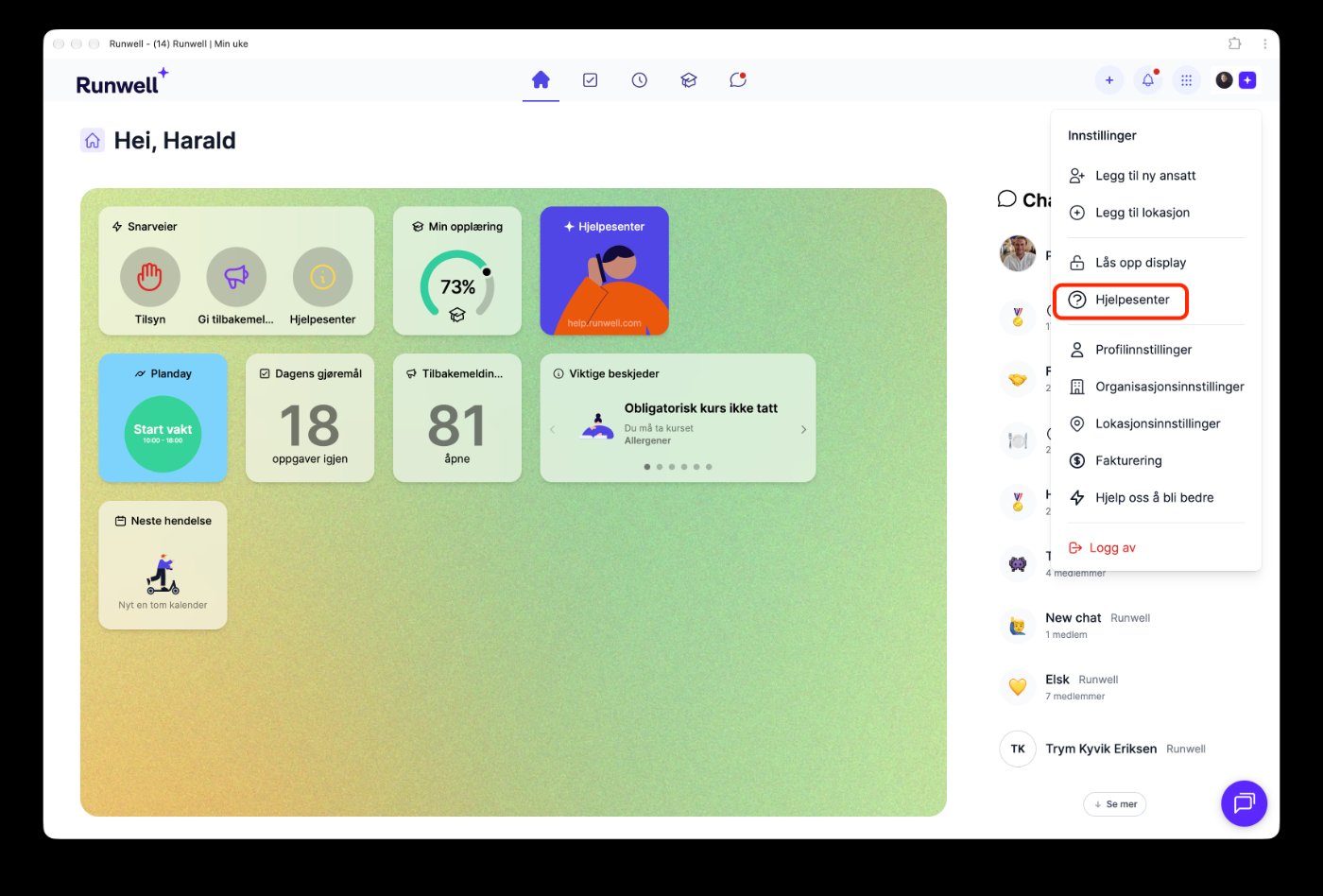
Computer: Click your initials or profile picture in the top right corner and choose Help center.
Mobile: Open the location menu, scroll all the way down and tap Help center. This is also where you find Chat support if you want to talk to us.
You can also use the Help center shortcut on My week.
Good to know
- The inspection button is under Shortcuts on My week.
- The feedback archive is under Feedback in the location menu. The archive is only available on a computer.
- Log out is at the bottom of the profile menu on a computer and at the bottom of the location menu on mobile.
The screenshots show the app in Norwegian. The menus are in the same place when Runwell is set to English.
Feel free to contact our customer service if you have any questions 🤩