
To invite employees to Runwell quickly and easily, you can export contact information manually from Planday. Follow this step-by-step guide.
1. Log in to Planday
A manager with full access logs in to Planday.
2. Go to "Employees" and select "Tools"
Click Employees in the main menu, then Tools in the top right corner. In the dropdown menu, select Export data.

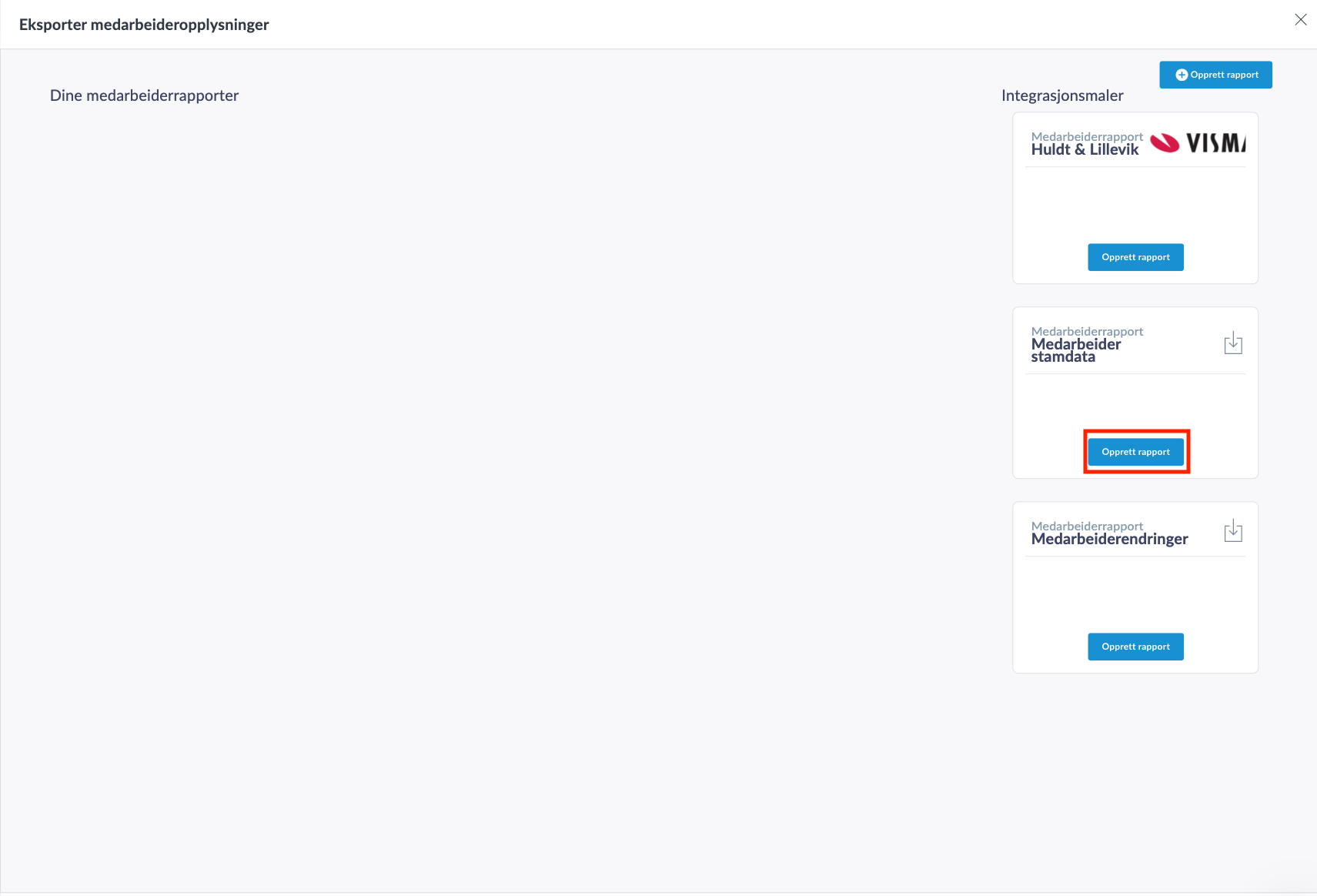
3. Create a report in "Employee master data"
Find the Employee master data section and click Create report.
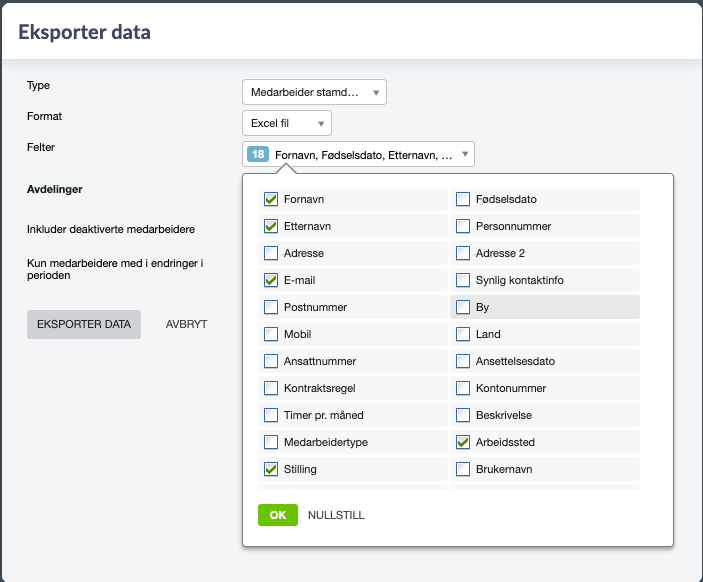
4. Choose the fields to export
Select only these fields for export:
-
First name
-
Last name
-
Email
-
Position
5. Log in to Runwell and import the data
-
Go to Runwell and log in.
-
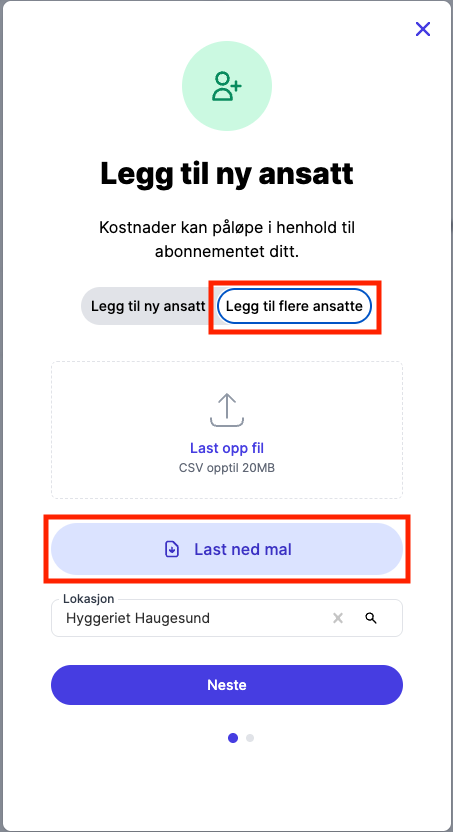
Click the plus button in the top right corner.
-
Select Add new employee, then Add multiple employees.

-
Download the template that appears.

6. Copy the data from Planday to the Runwell template
-
Open the Planday file you downloaded.
-
Copy first name, last name, email and position into the Runwell template.
-
Note! Make sure the job titles match the ones already created in Runwell.
7. Save and upload the CSV file
-
Save the template as .CSV.
-
Upload it to Runwell.
And that's it. All your employees are now invited to Runwell!