
You need edit access to the document to turn on reading confirmation. If it's an organization document, it must first be shared as a Master to your locations before reading confirmation can be turned on.
Reading confirmation makes a Runwell document behave like a course: you decide who should read it, and you can see exactly who has confirmed they have.
Open the document you want to add reading confirmation to, and click the cube icon in the toolbar at the top of the document.
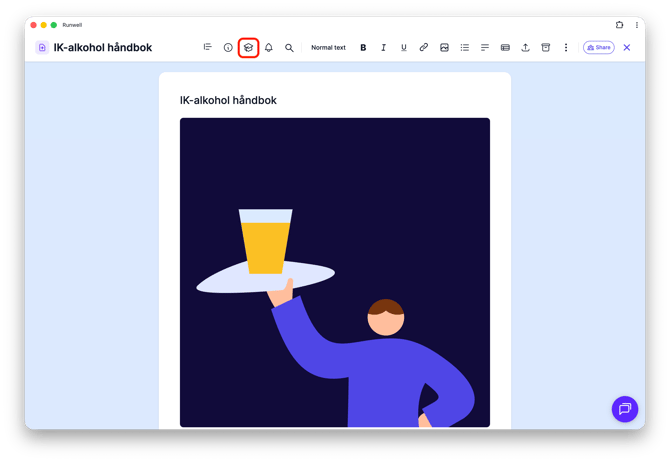
In the window that opens, choose how long the confirmation should stay valid under Valid for (for example 1 year), and turn reading confirmation on with the toggle. Then click Save.
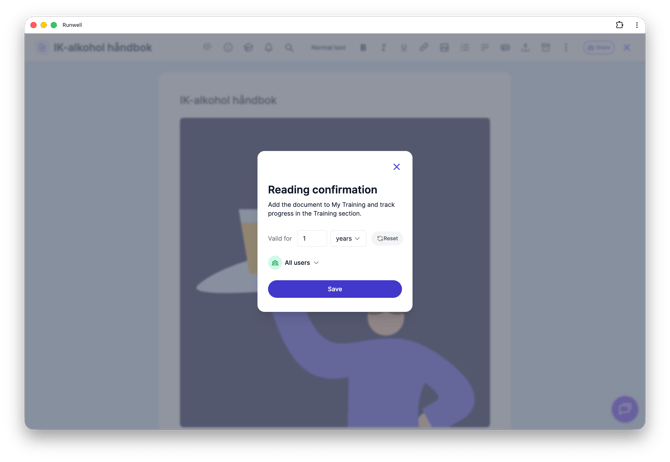
Is this a document in Organization files? You'll need to share it as a Master to your locations first, under Share > Master. Until you do, Save will show an error and stay disabled.
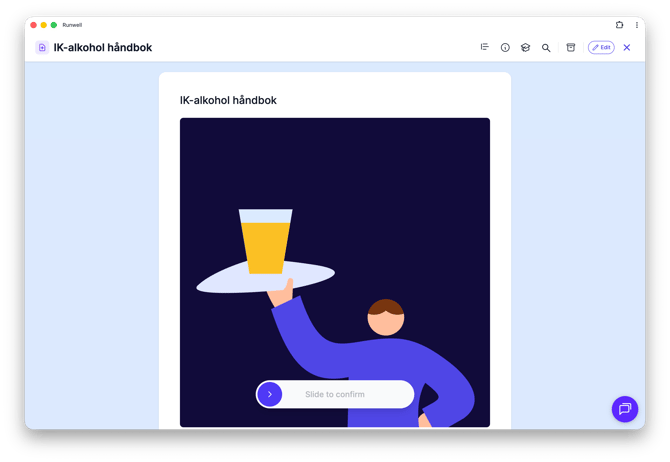
Once reading confirmation is on, the document appears under My Training for everyone it's assigned to. It opens in read mode, and a slider at the bottom lets them confirm they've read it. Under Training, you can track how many have confirmed, and reset confirmations at any time if the document changes and everyone needs to read it again.
Don't hesitate to reach out to our customer service if you have any questions 🤩