
This article walks through everything in the toolbar when you're editing a Runwell document. If you only have view access, you'll see the document in view mode without these buttons.
When you open a Runwell document you have edit access to, everything you need is in the toolbar at the top.
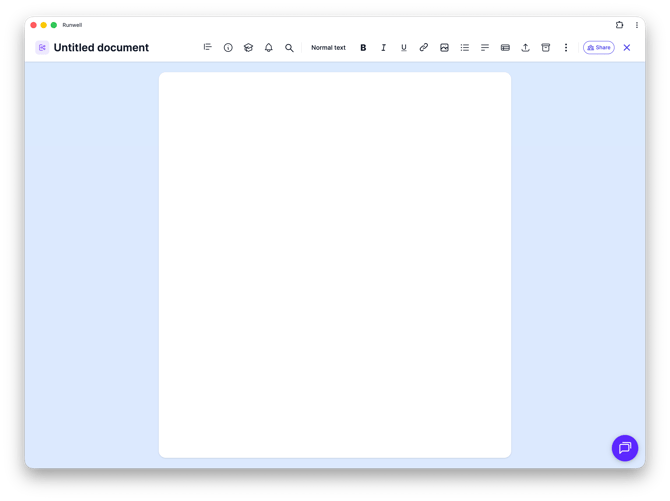
Structure and content
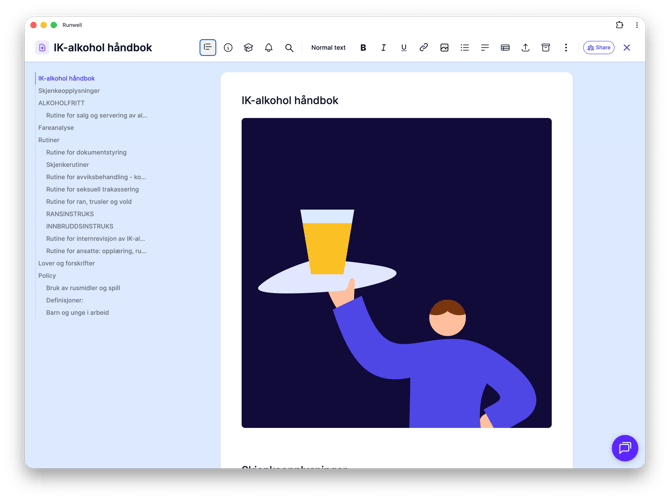
Click the table of contents icon on the far left to see an overview of the document's headings — handy in long documents when you want to jump straight to the right chapter.
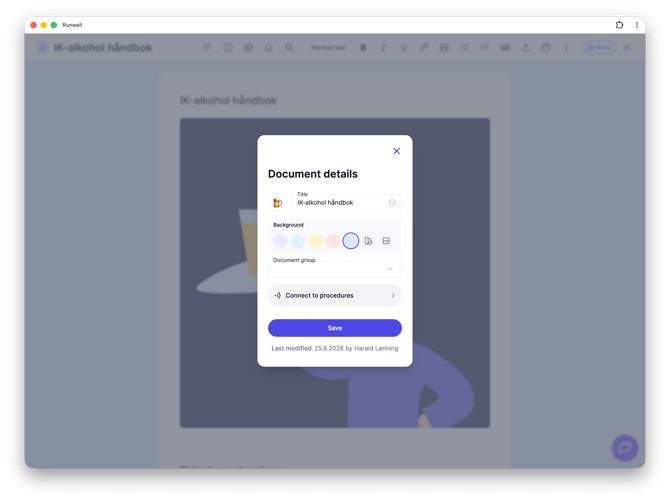
The info icon opens Document details, where you set the title and emoji, choose a background color or image for the cover, and place the document in a document group. You'll also see when the document was last updated, and by whom.
The grad hat icon turns on reading confirmation (see its own article), and the bell icon lets you set a reminder with an expiry date and a note, so editors get notified when the document should be updated.
The magnifying glass searches within the document you're currently in.
Formatting
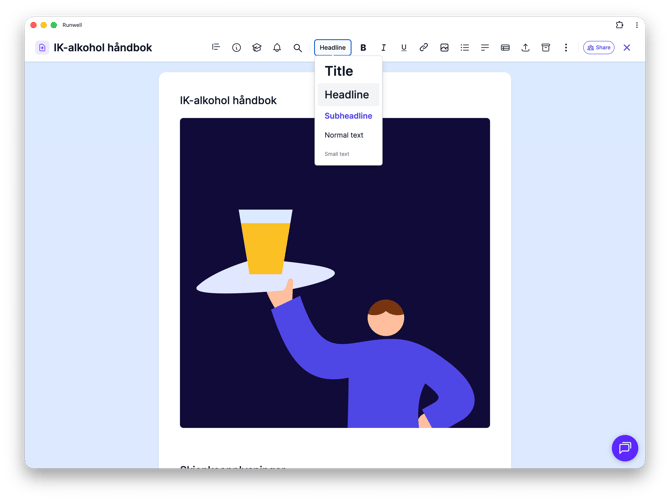
In the middle of the toolbar, choose a text style from the dropdown: Title, Heading, Subheading, Normal text, or Small text. We use fixed styles instead of free font sizes, so the document looks good on every screen, mobile included.
You'll also find bold, italic and underline, the ability to add a link and an image, bulleted lists, text alignment, and tables.
File handling
The up-arrow icon lets you replace the file the document is built on with a new PDF, PNG, or JPG (up to 20 MB) — or start a brand new Runwell document instead. The previous version is archived automatically and stays available if you need it.
The archive icon takes you to archived documents, while the "..." menu gives you Make a copy and Archive document.
Finally there's the Share button, which controls who can see and edit the document — and for organization documents, whether it's shared as a Master or a Template to your locations.
Don't hesitate to reach out to our customer service if you have any questions 🤩