
This only applies to documents in Organization files, and requires organization-level access.
Want only specific people to see an organization document — instead of everyone at the locations that have access? Use the Restricted setting.
Open the document, click Share, and choose the relevant tab (File, Master, or Template, depending on how the document is shared).
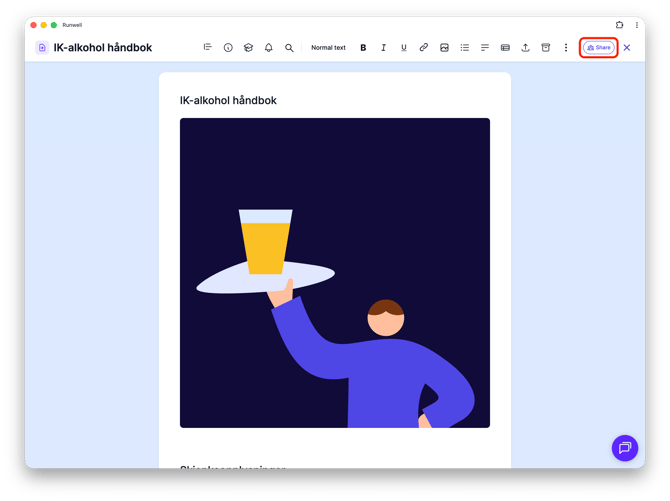
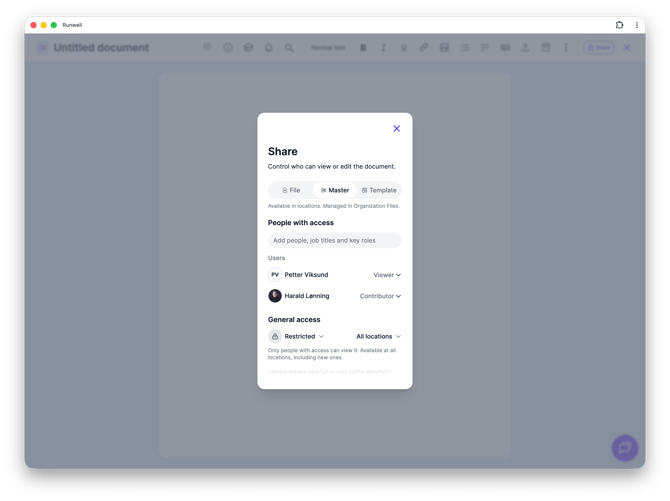
First, add the people, job titles, or key roles who should have access, in the Add people, job titles and key roles field. They'll show up in the list under Users.
Then switch All users to Restricted under General access. Now only the people you added to the list above can see the document — not everyone else with access to the location or organization.
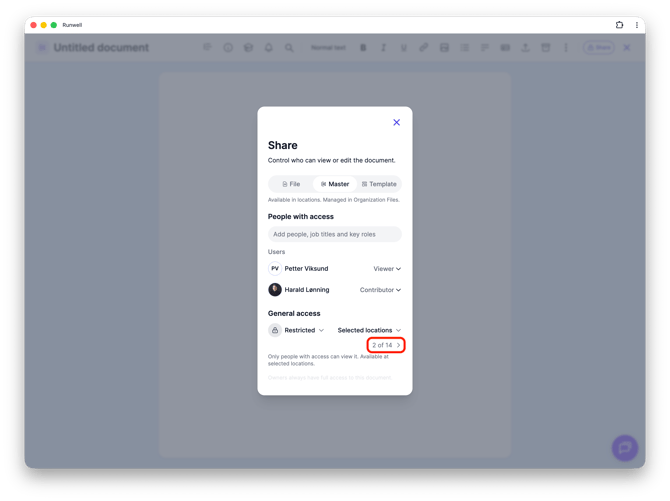
If you're sharing the document as a Master or Template, you can also choose Selected locations and check exactly which locations should have access, instead of all of them.
Don't hesitate to reach out to our customer service if you have any questions 🤩