
Organization files requires organization-level access and Pro plan. If you don't see this menu item, check with an admin on your team.
Organization files is where you manage documentation that should apply across several of your locations at once, without uploading the same document over and over.
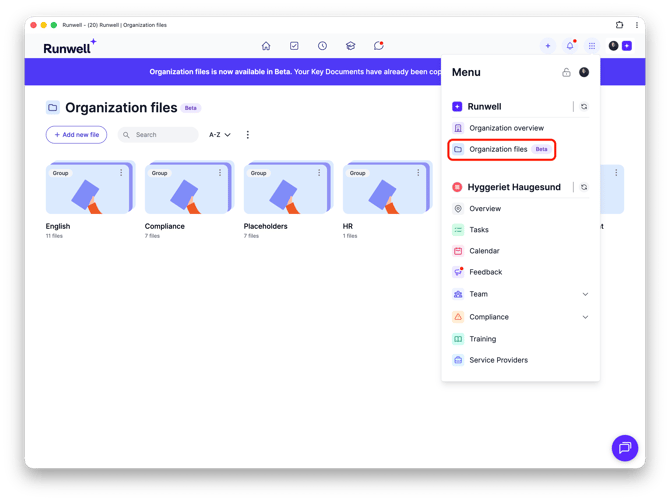
You'll find Organization files by clicking the grid icon in the top right and choosing Organization files under your organization's name.
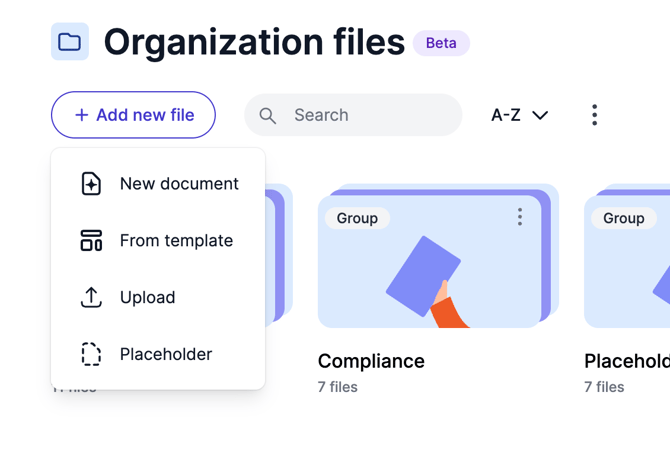
Click Add new file to see the four ways to add something here:
New document starts a new Runwell document you write yourself. From template pulls a ready-made template from the Template Center. Upload uploads a PDF, PNG, or JPG. Placeholder creates an empty document slot you fill in later — or turn into a shared space where each location uploads its own document (see the article on location upload status).
Every document you add here can be shared out to locations in three ways, via the Share button: as a finished Master that all (or selected) locations see, as a Template locations choose to copy themselves, or regular File sharing for those who should only have organization-level access.
See the other articles in this series for detailed steps on each of these: creating a template, sharing to all current and future locations, sharing with selected people, location upload status, setting update reminders, choosing who can see and edit, and creating a master document.
Don't hesitate to reach out to our customer service if you have any questions 🤩